Jersey Business Manager
Is JBM suitable for you? It is for Jersey sole traders and small service businesses that invoice customers, record expenses and work mainly on one computer. It has no shared live database, stock control, till or full accounting ledger. Check the business suitability list before buying, especially the GST and payroll exclusions. Each device and browser profile has separate records: export backups regularly and use Import to restore or transfer them.
Invoicing, expenses, GST and payroll for businesses in Jersey. Everything runs on your own computer.
Getting started
Installing
Use the website's Install the app button, then follow your browser's installation steps. In Edge or Chrome (Windows or Mac) choose the install icon in the address bar or the browser menu. In Safari 17 or later (Mac) choose File → Add to Dock. Firefox 143 or later (Windows) adds the app from the Web Apps icon in the address bar. The app can work offline after its first online load reports Ready for offline use.
Phone or tablet. On an iPhone or iPad, open the app in Safari, tap Share, then Add to Home Screen, and always open it from that icon (Safari can clear the data of a website you have not used for a week; an app on the Home Screen is kept). On Android, open it in Chrome and choose Install app. Records stay on that device and do not sync with your computer: use Export backup and Import to move or protect them. Windows and Mac are the fully tested setups.
In Brave, open the menu, choose Save and share, then Install page as app. If it does not appear, turn off Shields for this site. A missing icon comes back from brave://apps (right-click the app, then Create shortcuts).
If you already have a Jersey Business Manager icon, open it instead of installing again. Keep using the same browser and profile: another browser/profile stores a separate set of records, so when you change browser or computer use Export backup in the old one and Import in the new one.
Which browser should I use?
Use Chrome or Edge. Both install the app with its own icon and can save your records straight to a file on your disk. Firefox and Safari install it too, but cannot save straight to a file: use Export backup regularly and Import to restore.
Putting it on your desktop
During installation, choose Create desktop shortcut. You may also choose Pin to taskbar.
- To open it later, double-click the Jersey Business Manager desktop icon or find the app from the Windows Start menu.
- If you installed through Edge and missed the shortcut, open
edge://apps, choose Jersey Business Manager, open Details and create its desktop shortcut. - Closing the app window does not remove it or delete records. Launch it again from the same icon and browser profile. Do not clear browser data; export backups regularly.
Your trial and licence
The first time you open the program a 90-day free trial starts automatically. It lets you try the listed supported workflows. Use test data first. Matching several pay runs does not validate different pay patterns, changed ITIS rates, incomplete records or special circumstances. Check every pay run against current official sources and your own records.
You can see how many days remain at any time under My business → Licence.
JBM2.<payload>.<signature>. Copy the full code exactly as supplied.
Buying a licence, and what happens after the 90 days
You can ask for a licence at any time, before the trial ends or after it. There is no online checkout and no automatic renewal.
- Inside the program press Get a licence (in the on-screen warning, under My business → Licence, in Help, or on the screen that appears when access has expired). On the website use the Request a licence form.
- Fill in your name, an email address I can reply to and the licence you want, then press Write the email. Your own email program opens with the message ready; nothing is sent until you press Send. If your computer has no email program, press Copy instead and paste the text into any email.
- I reply with a written order confirmation: the total including any taxes, the 365-day term, how to pay, and delivery and cancellation terms. Check it before you pay.
- Once payment is received I email your licence code. Open My business → Licence, paste the whole code and press Activate.
Your 365 days start the day the code is sent. To renew, use the same form and choose Renew my existing licence; the program warns you on screen for 15 days before your licence ends.
Where your information is kept
Everything you type is stored on this computer. It is never sent over the internet.
The program saves in two places:
| Where | What it means for you |
|---|---|
| Inside your browser | Happens automatically. Fine day to day, but it would be lost if you cleared your browsing data. |
| A file on your disk | Recommended. You choose where it lives, so it survives anything that happens to the browser. |
Each time you open the program: come back to that section and press Open file… once to reconnect. Your browser is not allowed to remember file permissions between sessions, so this small step is unavoidable.
Updates
When there is a new version, a bar appears at the top of the program, on every screen, saying A new version of Jersey Business Manager is ready. Press Update now. The program saves your work, keeps a recovery copy of your records, and restarts on the new version. Your records stay as they were.
If you are not ready, press the cross to hide the bar until the next time you open the program. An update that changes rates or rules is marked Important update, in amber, with a short line saying why. That one stays until you update, so your figures use the current rules.
The program looks for updates when you open it with an internet connection. You can also press Check for updates in the green bar on the Dashboard at any time. Working offline is fine, but open the program online now and then so it can find new versions. A licence includes the current versions while it is active.
1. Your business details
Do this before your first invoice. Go to My business.
| Field | What to put |
|---|---|
| Business name | How you want it to appear in large letters at the top of invoices. |
| Tagline | A short line under the name, e.g. Digital Creative Services. |
| Services | The thin line listing what you do. |
| Full / legal name | Your legal trading name, shown in the FROM block. |
| Bank, account number, sort code | Printed on every invoice so clients can pay you. |
| Invoice prefix and next number | Invoices are numbered automatically. Set the starting point once. |
| Payment terms | How many days customers have to pay. The due date is worked out from this. |
Press Save changes when you are done.
2. Clients
Go to Clients → + New client. Name is the only thing required; the address, email and phone appear on the invoice, so it is worth filling them in.
The Internal notes field is for you alone and never appears on any invoice.
3. Invoices
2. Choose the client from the dropdown.
3. Describe the work in Services, and use Work period for dates, hourly rate or total hours.
4. Add your line items: description, quantity, price. Totals calculate as you type. If you are GST-registered, choose a GST category on every line.
5. Set the status and press Save, or Save & preview to see the finished invoice.
What the statuses mean
| Status | Meaning | Counts towards totals? |
|---|---|---|
| Draft | Still working on it, not sent. | No |
| Issued (unpaid) | Sent to the client, waiting for payment. | Yes |
| Paid | Money received. | Yes |
Credit notes
If you charged too much, or the customer sends goods back, do not change the invoice. Issue a credit note instead. Press Invoices, then + Credit note, choose the invoice, and lower the quantities or prices to the amount you are crediting. The number is CN-2026-001 and so on.
- A credit note can only correct an invoice you have already issued, so drafts are not offered. It cannot be dated before that invoice, and all credit notes on one invoice cannot add up to more than the invoice.
- It prints as a CREDIT NOTE with the amounts in minus, and says which invoice it corrects. For a GST invoice it keeps the same GST rate and categories.
- It takes the amounts off your turnover and off boxes 1, 2 and 6 of the GST return, in the quarter the credit note is issued.
- Status Open means the customer still has the credit. Settled means you refunded it or took it off a later invoice.
- An invoice that has a credit note cannot be deleted until the credit note is.
Source: GST records, including credit and debit notes.
Sending and printing
Open any invoice and press View. You then have two buttons:
- Download PDF - choose Save as PDF as the destination. The file is named after the invoice, e.g.
INV-2026-003.pdf. - Print - sends it straight to your printer.
4. Expenses
Go to Expenses → + New expense. Record everything you spend on the business: software, hosting, equipment, bank and PayPal fees, phone, advertising, travel.
The three cards at the top show your spend, your income and the profit between them. If you are GST-registered, also enter how much of each amount was GST and whether the supplier is in Jersey, an import, or not on the GST return.
5. Jersey Tax screen
This screen turns what you have entered into the figures Jersey actually asks for. Pick the year at the top.
Deadlines
Everything you may have to file, with its date. The status column tells you whether it applies to you.
| Obligation | When |
|---|---|
| GST returns (only if registered) | Last day of the month after your assigned return period; check your registration letter |
| Personal tax return (includes business income) | As notified by Revenue Jersey |
| CER, ITIS and Social Security (employers only) | Within 15 days of each month end |
Quarterly breakdown
Income, expenses and profit split into quarters. These are the numbers an accountant asks for, and the same ones the Income Support profit and loss sheet wants if you claim it.
GST position and the GST return
For a business not registered for GST, this is an invoice-entry indicator only, not a registration test or decision. JBM cannot classify every supply or assess expected future supplies.
If you are registered (My business, then GST-registered: Yes, with your GST number and business address), the program changes in three places:
- Invoices. Each line gets a GST category: standard-rated 5%, zero-rated, sale to an international services entity (ISE) or exempt. Only standard-rated lines carry GST. You can add the date of supply and, once paid, the date paid, because GST is counted from the earliest of delivery, invoice issued and payment received. An issued invoice prints as a TAX INVOICE with your GST number, the tax point and the GST charged. It cannot be issued without your GST number and address. Not sure which category applies? See what is taxed and supplies to an ISE.
- Expenses. Enter the total paid and how much of it was GST, and say whether the supplier is in Jersey (box 4), an import or overseas supplier (box 5), or not on the return at all (wages, Social Security, fines, private spending). Expenses with no treatment are left out and flagged.
- Jersey Tax screen. Under GST return support, choose a calendar quarter or Custom return dates. For custom dates, enter the start and end shown on your official return, including periods crossing a year end. Both dates are inclusive; missing or reversed dates show no figures. The eight boxes include a Copy button and an official source link. Boxes 3 and 8 are calculated by the official form; compare them with JBM. Annual totals and the accountant report remain calendar-year summaries. Selecting dates does not add support for cash accounting or special GST schemes.
Sources: completing the GST return, how GST works.
Bad debt relief
If a customer never pays and you have written the debt off in your accounts, you can get back the GST you paid on that sale. The sale must be at least 6 months old. You claim it in box 7 of the return for the period you become eligible, within 12 months of the write-off.
Open the unpaid invoice and fill in Bad debt relief (GST): the date you wrote it off, and anything the customer paid before that. JBM works out the GST on the unpaid part and adds it to box 7 of the right quarter. If the customer pays later, enter the date and amount: that payment is taken off box 7 of the quarter it was paid in. Keep the invoice, your bad debt account and the payment records for 6 years from the claim date.
Source: bad debt relief.
Exempt sales and annual accounting
If you have exempt sales in a quarter, JBM shows what share of your total sales they are. Under 5% (Test A) you can normally deduct all your input tax. Over 5%, Test B applies, and splitting purchases between taxable and exempt sales is something only you or your accountant can do. The GST position box also shows the limits of the annual accounting scheme: one return a year, due 31 January, with one payment on 31 July. You apply in writing.
Sources: partial exemption, annual accounting.
Class 2 contributions
The planning estimate is available for 2026 only. Other years require period-specific records and assessment; the current-year formula is not applied to them.
An estimate of self-employed Social Security based on your profit.
Startup Plan in 2026: acceptance is required. £252.58 per month is based on annual income of £24,248. A review two years after your application can produce an additional bill or a refund, subject to the rules. Employment, self-employment and unearned income are considered, not only your JBM profit. Budget for a possible additional payment. Official Startup Plan rates, eligibility and review.
Capital allowances
Things the business buys and keeps using, such as a van, an oven or a computer, give tax relief over several years. On the Jersey Tax screen press + Add equipment and enter what it is, the date bought and the cost. Plant and machinery goes into one pool and is written down at 25% a year. The allowance is worked out on the pool at 31 December: what was carried forward, plus what you bought, less what you sold.
- A car that is not a commercial vehicle has its own pool, and only the first £22,000 of its cost counts.
- Glasshouses have their own pool at 10%.
- If you use something partly for private purposes, enter the business percentage.
- If you sell something for more than what is left in the pool, the difference is a balancing charge you are taxed on. Use the market value if you sell for less.
- Buildings do not count. If you already had a pool, add it as a balance brought forward from your last return.
The allowances are shown on their own and in the accountant report. They are not taken off the profit on the screen. Sources: how allowances work, official guide.
Report for accountant
The button at the top right produces a one-page summary: totals, quarterly breakdown, expenses grouped by category and your GST position.
This summary groups the records entered in JBM so you can give them to your accountant for review. It is unaudited and does not replace source documents or the accountant’s own checks.
6. Payroll, ITIS & CER
Only needed if you employ people. If you do not, ignore this screen entirely - nothing else in the program depends on it.
Adding staff
+ Employee and fill in:
| Field | Where it comes from |
|---|---|
| Social Security number | Their Social Security registration card. Take a copy when they start. |
| TIN | Their ITIS effective rate notice from Revenue Jersey. |
| ITIS effective rate | The percentage on that same notice. If they have not given you one, you must use 22%, the default rate. |
| Pay basis | Fixed salary, or hourly with a rate. |
| Pay frequency | Monthly or weekly. |
| Email address | Optional. Used to open a pre-addressed email when you send a payslip. Not printed on the payslip itself. |
| Start and end dates | Staff only appear in periods they actually worked. |
Running payroll
- Choose the month at the top.
- For hourly staff, enter their hours.
- Use Extra for bonuses, overtime or anything on top.
- For a monthly salary, use Override for the actual gross when the month is partial or the pay differs from the saved salary.
- Weekly payroll supports a fixed weekly salary only when the employee was employed for the whole month and paid on the usual weekly schedule. A weekly hire or leaver during the month, weekly hourly pay, a monthly gross override, and any extra/variable weekly pay are blocked because the app does not record each payment amount and date. Do not close or file an unsupported weekly case. Jersey rules require final wages paid after leaving to be reported in the month the employee left.
The Payroll run table then shows, for each person: gross pay, ITIS deducted, their Social Security, what they take home, and what the contribution costs you as the employer.
How the figures are worked out
| Deduction | How |
|---|---|
| ITIS | Gross pay multiplied by that employee's effective rate. Long-term care is already included in that rate - never add it separately. |
| Social Security, employee | 6% of qualifying earnings up to the monthly Standard Earnings Limit for the supported years, except October to December 2022 (4%). Per-payment thresholds and earnings rounding apply. A valid XR1 exempts the employee contribution; age alone is insufficient. |
| Social Security, employer | 6.5% up to the Standard Earnings Limit, plus 2.5% on earnings between that and the Upper Earnings Limit. |
Payslips
Every employee in the current pay run has a Payslip button. Press it to open a print-ready payslip showing:
- Gross pay, ITIS deducted, employee Social Security and net pay
- The employer's Social Security contribution (shown separately - it is not deducted from their pay)
- A note if earnings fell below the Minimum Earnings Threshold and no contributions were due
From the payslip preview you can:
- Download PDF / Print - saves or prints a single payslip for that employee.
- ✉ Email to employee - opens your email program addressed to the employee (only appears if you entered their email address). Attach the PDF you just saved.
To produce every payslip for the period in one go, press Print all payslips at the top of the Payroll screen. All employees appear on separate pages inside one print dialog - choose Save as PDF to get a single file, or send it straight to the printer.
Year-end statements
Each employee must be given a written summary of the tax and contributions taken from their pay in the year, with the ITIS rate applied. Give it by 31 January after the year, or when the person leaves. On the Payroll screen, under Year-end statements, press Statement for one person or Print all statements. It is built from your closed pay runs only. If a month is not closed, the statement says so, so close every month first. Revenue Jersey does not publish a fixed layout, so this one shows month by month gross pay, ITIS rate, ITIS, employee Class 1 and net pay. Source: employer guidance.
Benefits in kind
A benefit in kind is something you give an employee that is not pay, such as accommodation, a company vehicle or private health cover. Under Benefits in kind on the Payroll screen press + Add a benefit. The usual value is what it cost you. Furnished accommodation is 20% of the employee's salary and unfurnished 15%, in proportion to the months provided, or open market rent with professional evidence. Whatever the employee pays back reduces the value. For a company vehicle, work out the value using the official page and enter it as the value from the official page.
Benefits are reported on the combined employer return by 15 January after the year. Summary for the January return prints the list. No tax is taken from pay for them: the employee declares them, so the year-end statement shows them too. Source: benefits in kind.
Filing the CER
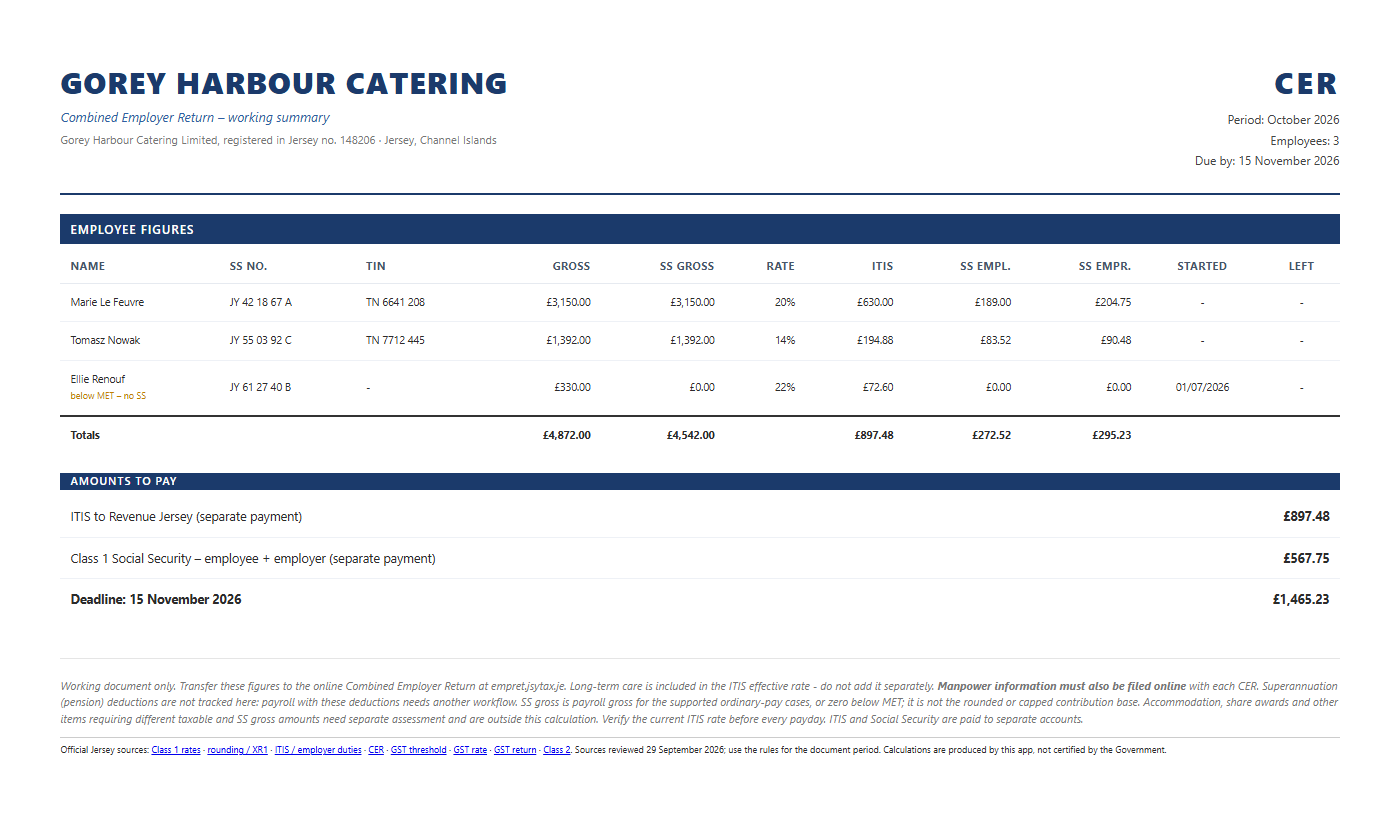
This is a working summary, not a complete return or submission service. Gross is payroll gross. SS gross is the gross for Social Security: the same amount for supported ordinary pay, or zero below the Minimum Earnings Threshold. It is not the rounded or capped contribution base. Accommodation, share awards and other items with different taxable and SS gross amounts require another workflow. Closed months use their saved employee details and figures, including when an employee has subsequently been removed.
JBM does not track pension deductions or prepare manpower fields. Payroll requiring pension deductions is outside its scope. Check the current ITIS rate each payday; one rate is used for the whole open monthly run. Changes within a month need separate records.
Manpower: businesses with employees complete this within the monthly CER, including the business reference, staffing permissions, contract type and weekly contracted hours. Businesses without employees use the separate manpower form: the position at 30 June is due by 31 July; the position at 31 December is due by 31 January. Official manpower guidance · Official CER fields and Social Security gross.
Press CER summary to produce a page with every employee's name, Social Security number, TIN, gross pay, rate, ITIS and contributions, along with the totals to pay and the deadline.
Use it to copy the figures onto the real Combined Employer Return on gov.je.
7. What you can do yourself
People often assume that filing anything to do with tax requires an accountant. In Jersey, for a sole trader or a small private company, that is mostly not so. It is worth knowing where the line actually falls, because it decides what you are paying an accountant for.
| The job | Who can do it |
|---|---|
| Keeping your records and preparing your own figures | You |
| Your personal tax return, including business income | You |
| Checking and submitting your quarterly GST return (JBM works out the figures) | You |
| The Combined Employer Return, ITIS and Social Security | You |
| Manpower information: monthly with CER for employers; June and December reporting for businesses without employees | You |
| Giving employees their payslips and year-end statements | You |
| A statutory audit, where one is required | A recognised auditor only |
| Accounts, where Revenue Jersey asks for them to be professionally prepared | A qualified book-keeper or accountant |
The three things that genuinely need a professional
A statutory audit. Under the Companies (Jersey) Law 1991 an auditor is needed only if the company is a public company, if its own articles require one, or if the members vote for one. A private trading company in Jersey normally needs no audit at all. Where an audit is required, the auditor must belong to a recognised professional body, this is the one job genuinely closed to everyone else.
Accounts, if Revenue Jersey asks. Their guidance for the self-employed says that depending on the nature, turnover or profit of your business they may ask for accounts prepared by a qualified book-keeper or accountant. It is at their discretion, and no published turnover figure triggers it. If you are near that territory, ask them before you assume either way.
Company accounts with the return. A Jersey company has to submit a copy of its accounts alongside its company tax return. Who prepares them is a separate question from whether they must be filed.
So what are you paying an accountant for?
Judgement, and someone to stand behind it. Not a licence to press submit.
Which expenses are allowable and which are not. What counts as capital rather than day-to-day spending. How to treat a vehicle, or a room in your house used for work. Whether you would be better off as a company than as a sole trader. Whether a figure that looks odd is a mistake or simply an odd year. And, if Revenue Jersey queries something, a professional who answers for the work.
That is precisely the part this program does not attempt. What it removes is the other half of the bill: the hours spent gathering, sorting and adding up your paperwork before any of that thinking can begin. Hand your accountant the Report for accountant and they start at the judgement, not at the shoebox.
Backups
Two ways, and it is worth using both:
- Save to file (My business) - your live data written to a file you choose. Put it in OneDrive or Google Drive and it is backed up as you work (that service syncs the file under your own account, JBM does not upload it).
- Export backup - a dated snapshot you can keep. Do this at the end of each month and before anything unusual, like moving to a new computer.
Questions
Words explained
| Term | Meaning |
|---|---|
| GST | Goods and Services Tax, Jersey's 5% sales tax. Registration is normally compulsory when your taxable supplies (standard-rated and zero-rated sales) reach £300,000 in the last 12 months, or are expected to in the next 12. |
| ITIS | Income Tax Instalment System. Income tax collected from wages month by month instead of in one bill. |
| Effective rate | The percentage Revenue Jersey tells you to deduct from a particular employee. |
| CER | Combined Employer Return. The monthly return covering tax, contributions and staff details. |
| Class 1 | Social Security contributions for employees, paid partly by them and partly by you. |
| Class 2 | Social Security contributions for the self-employed. |
| SEL / UEL | Standard and Upper Earnings Limits - the ceilings that cap contributions. |
| LTC | Long-term care contribution. Already inside the ITIS rate; never added separately. |
| Output / input tax | GST you charge customers, and GST you pay suppliers. |
Official Jersey sources
Source review: 5 October 2026. Follow the official page for the year and circumstances concerned. The software is not Government-certified. Historic rates require period-specific verification.
- Class 1 rates, MET, SEL and UEL (2026)
- Class 1 rates for earlier years
- Rounding, weekly contributions and XR1
- ITIS default, CER deadlines and employee statements
- Class 2 rates, eligibility and Startup Plan
- GST registration threshold and 12-month tests
- GST standard rate
- GST return boxes and deadlines
- Minimum wage and effective dates
- Record retention and backups
- Self-employment and tax obligations
- Completing the CER