1Opening the program
Install Jersey Business Manager once. After that, open it from its app icon just like other apps. You do not need to download or open an HTML file.
Before installing, check your desktop, Start menu, taskbar or Dock for a Jersey Business Manager icon. If you already see it, open the existing app instead. Installations in different browsers or browser profiles keep separate records; use the same one every time.
Install it and create its icon
- On the website, select Install the app.
- In Edge or Chrome, choose the install icon in the address bar (or the browser menu) and accept.
- When Windows offers the options, select Create desktop shortcut or pin it to the taskbar.
- Open the app online once and wait for Ready for offline use.
Open it after you close it
- Double-click the Jersey Business Manager icon on your desktop, or open the Windows Start menu and search for that name.
- If you installed it in Edge but skipped the shortcut, open
edge://apps, select Jersey Business Manager, open Details, and create a desktop shortcut. - Closing the app window does not delete your records. Reopen it in the same browser profile. Keep regular exported backups, and do not clear that browser's data.
In Chrome or Edge, choose the install icon in the address bar. In Safari 17 or later, choose File → Add to Dock. Open it later from the Dock or Launchpad.
On a phone or tablet
The same program works on a phone or tablet. Check the licence terms before using another device. On an iPhone or iPad, open the app in Safari, tap Share, then Add to Home Screen, and always open it from that icon. On Android, open it in Chrome and choose Install app (or Add to Home screen in the browser menu). Your records stay on that phone or tablet and do not sync with your computer: use Export backup regularly and Import to move them. Windows and Mac are the fully tested setups.
Which browser should I use?
Use Chrome or Edge (Windows or Mac). Both install the app with its own icon and can save your records straight to a file on your disk. Firefox 143 or later (Windows) and Safari 17 or later (Mac) also install it; in those two, use Export backup regularly and Import to restore. In Brave, open the menu, choose Save and share, then Install page as app (if it does not appear, turn off Shields for this site; a missing icon comes back from brave://apps).
Chrome, Edge, Brave and Firefox, and each browser profile, store separate data. A copy installed in another browser starts empty. When you change browser or computer, use Export backup in the old one and Import in the new one.
Nothing is sent anywhere
Everything you type stays on your own computer, phone or tablet. The program never sends your customers, your figures or your staff details to me or to anybody else. There is no account to make and no password to remember. When you are online, the program may check for a newer version, and the links to gov.je open official websites. None of your records are part of that.
2Have a look round first
Before you type in a single one of your own figures, open one of the two example companies. They are made up. You cannot break anything.

Click My business along the top, then scroll down to the box called Try it with an example company.

An example opens as a separate company of its own. Whatever you change inside it cannot touch your own records. While you are in an example there is a blue bar across the top of the screen saying so, with a button to go straight back.


Along the top are the seven screens. Click each one and have a look. Nothing you click here can do any harm.
| Screen | What it is for |
|---|---|
| Dashboard | The quick answer to "how am I doing?" |
| Invoices | Every bill you have sent, and where you make new ones |
| Expenses | Everything you have spent on the business |
| Jersey Tax | What you owe, what you must file, and when |
| Payroll | Wages, ITIS and Social Security, if you employ anyone |
| Clients | The people and companies you invoice |
| My business | Your own details, your licence, and saving your data |
When you have finished looking, click Back to my own company in the blue bar. To get rid of the examples altogether, go to My business and click Remove the example companies. Your own records are not affected.
3Putting in your own details
Do this once. It is what appears at the top of every invoice you send, so it is worth ten careful minutes.
Go to My business. Fill in the boxes down the page, then click Save changes at the bottom. If you are not sure about a box, leave it empty and come back to it.

The boxes that matter most
| Box | What to put in it |
|---|---|
| Business name | How you want it to appear in big letters at the top of the invoice. |
| Legal name | Your full registered name, or your own name if you are a sole trader. This is the small print line on the invoice. |
| Bank details | Bank, account number and sort code, so people can actually pay you. Check these twice. |
| GST-registered? | Say No unless Revenue Jersey has registered you. If you say Yes, put your GST number in as well. |
| Invoice prefix | The bit before the number, for example INV-2026-. Anything you like. |
| Payment terms | How many days people have to pay you. 30 is usual. 14 is common for small jobs. |
Do not tick GST-registered unless Revenue Jersey has registered you. If you do, every invoice line gets a GST category and every expense a GST treatment, and the Jersey Tax screen lays out the eight boxes of the GST return with the official source beside each. The invoice-entry indicator is not a registration test: it cannot classify every supply or assess expected future supplies. You still check the figures against your records and file on gov.je yourself.
4Your first invoice
About a minute, once your details are in.
- Click Invoices, then + New invoice.
- Pick the customer from the list. If they are not there yet, add them on the Clients screen first.
- The number and the dates fill themselves in. Change them if you need to.
- Write a short line saying what the work was.
- Add a line for each thing you are charging for: what it was, how many, and the price for one.
- Click Save.


Once it is saved, click View next to it in the list. That is the invoice your customer sees.
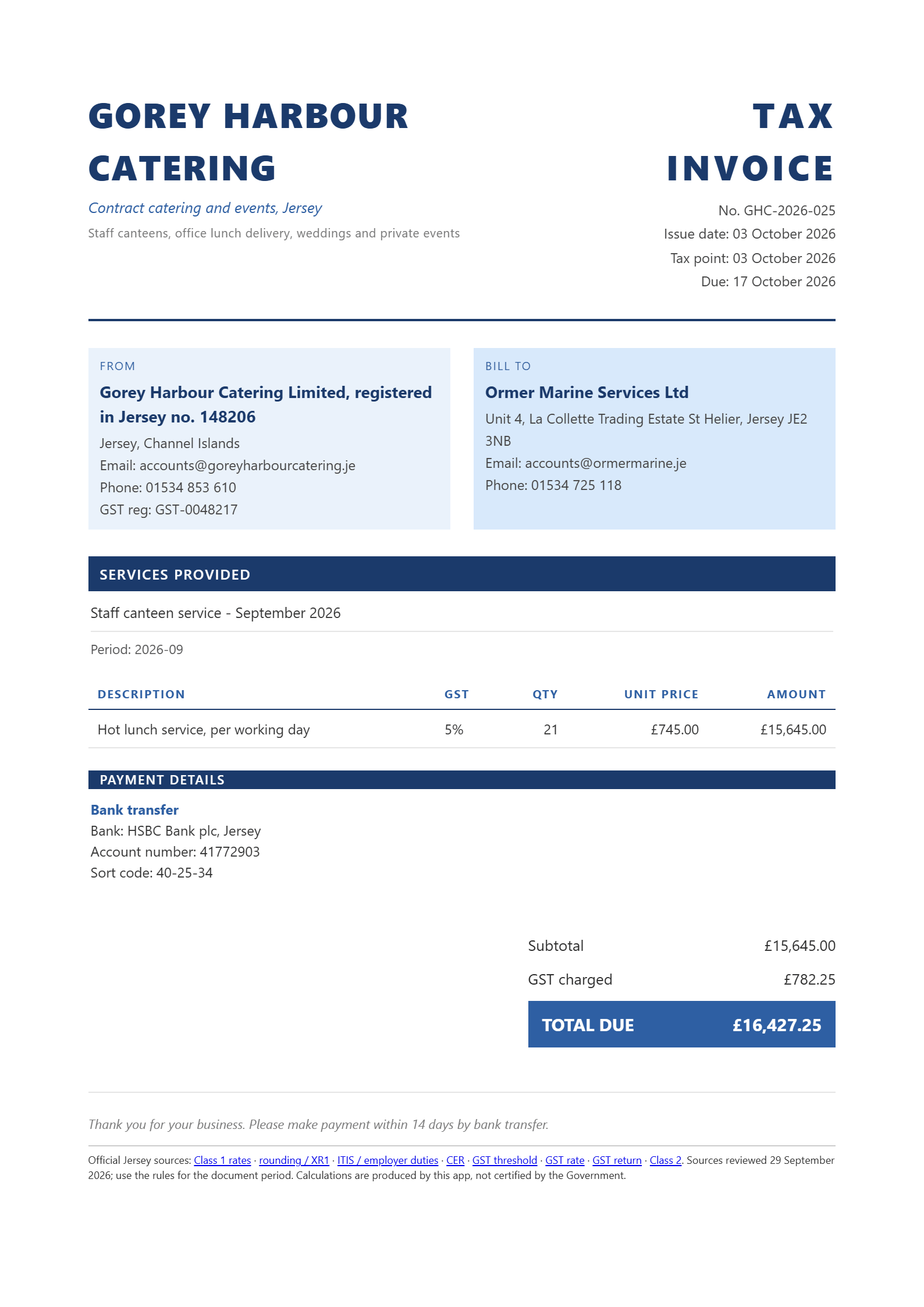
Marking an invoice as paid
When the money arrives, open the invoice and change its status from Issued (unpaid) to Paid. That is what keeps the "still owed" figure on your dashboard honest, so make a habit of it.
Draft means you are still writing it, and it is left out of your totals. Issued (unpaid) means it has gone to the customer and you are waiting. Paid means it is done.
5What you spend
Business expenses can reduce the profit you pay tax on. They only count if you write them down.
Click Expenses, then + New expense. Put in the date, the amount, what it was, and roughly what sort of thing it was. Save it. That is all there is to it. If you are GST-registered, also say how much of the amount was GST and whether the supplier is in Jersey, an import, or not on the GST return.

Typing an expense in here is not the same as keeping the receipt. Jersey law says you must keep your records for six years. A shoebox or a folder on your computer is fine, just keep them.
6Jersey tax and GST
This screen does not file anything for you. It tells you where you stand and what is coming, so nothing takes you by surprise.

What each part is telling you
- Turnover indicator. The percentage compares invoices entered in JBM over the last twelve months with £300,000. It does not classify exempt or zero-rated supplies, include certain services received from outside Jersey, or predict contracts. It is not a complete registration test; check official guidance.
- Deadlines. What you must file and by when. The ones marked only if employer do not apply if you have no staff.
- Quarterly breakdown. Income, expenses and profit for each quarter. This is what your accountant will ask for.
- Class 2 contributions. If you work for yourself you pay Social Security yourself. This is an estimate of it. Social Security set your real figure from your tax assessment two years earlier.
If you are GST-registered: the GST return
Select Custom return dates to enter the inclusive start and end dates from your official return, including periods across two years. Check the displayed period before copying figures. The annual summaries remain calendar-year reports.
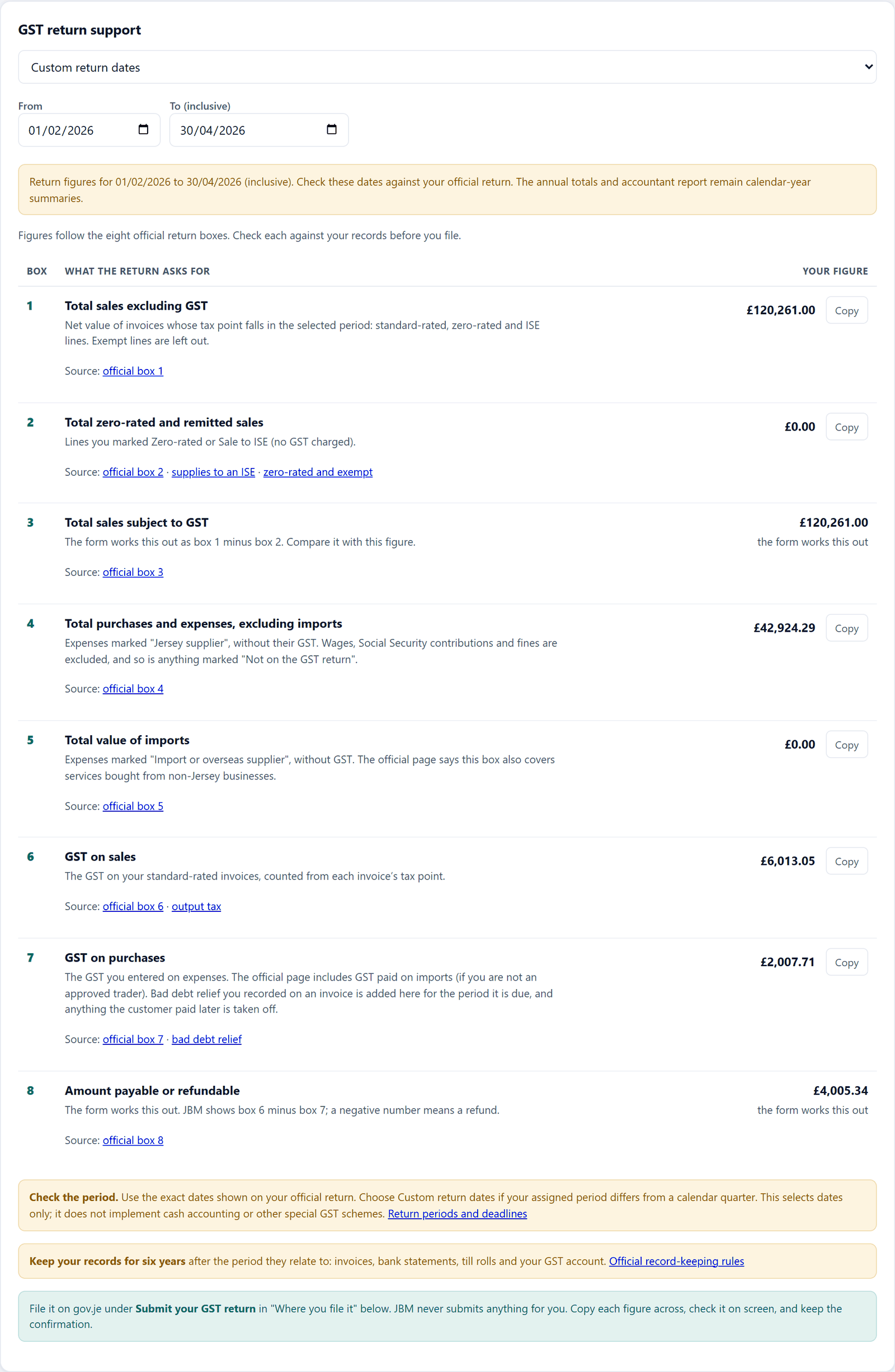
Below the GST position, GST return support lays out the eight boxes of the official GST return for the quarter or custom return dates you choose. For each box you see your figure, a Copy button and a link to the official gov.je page that explains it. Boxes 3 and 8 are worked out by the government's form; JBM shows its own figure so you can compare. You then enter the figures on gov.je yourself.
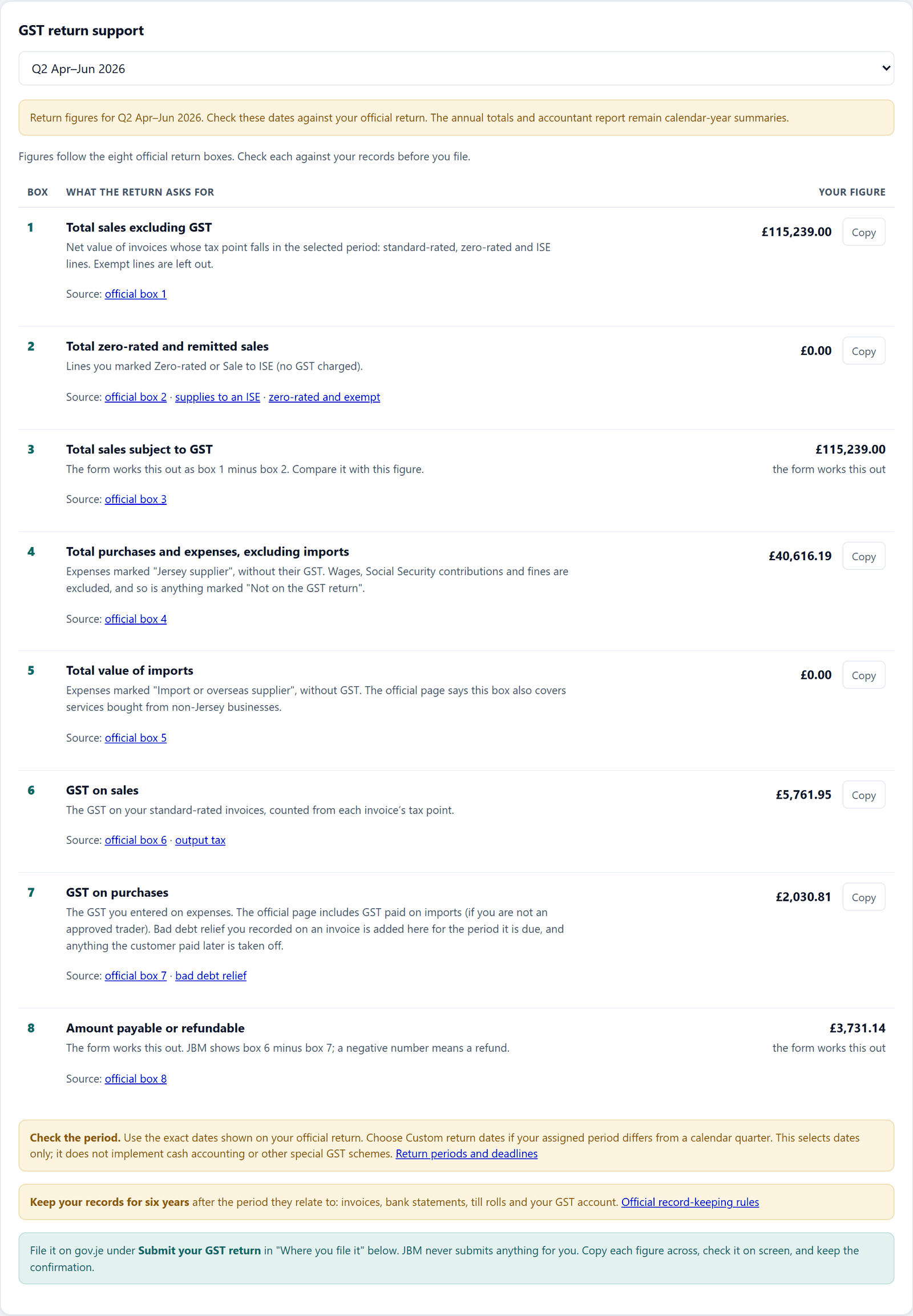
The Report for accountant button at the top prints all of this on one sheet.
These are calculations, not advice. Have your accountant check the figures before you file anything. You remain responsible for what you submit to Revenue Jersey.
7If you have staff
Skip this whole section if you work on your own.
Adding somebody
Click Payroll, then + Employee. You will need their Social Security number and their ITIS effective rate, which comes on the notice Revenue Jersey sends them.

If an employee has not given you a valid effective rate notice, Revenue Jersey requires you to deduct at the default rate of 22%. Do not guess a lower one.
Running the wages
Pick the month at the top. For anyone paid by the hour, type the hours they worked. Everything else calculates itself.
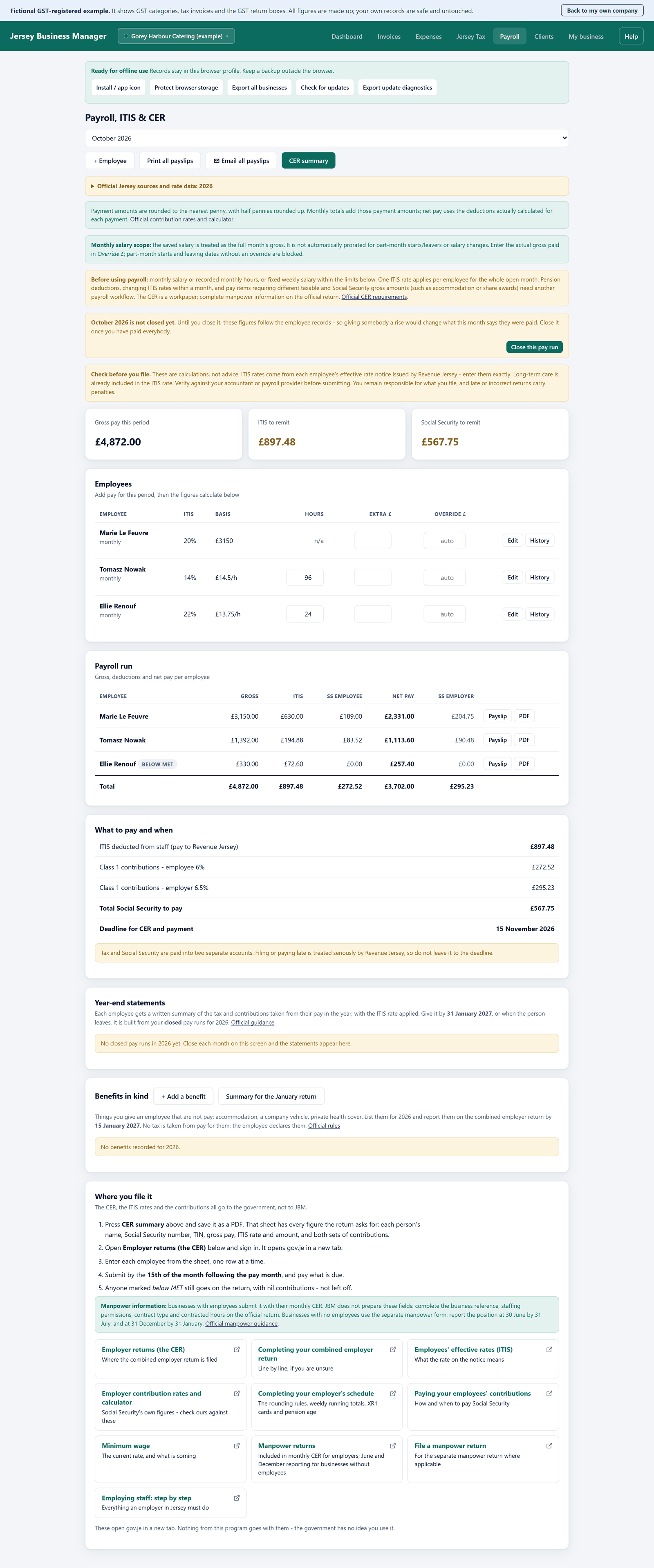
Two things you will see and wonder about
- "Below MET" next to a name means that person earned less this month than the Minimum Earnings Threshold, so no Class 1 Social Security is due for them this time. It is not a mistake.
- A warning about the minimum wage appears if you enter an hourly rate below the Jersey minimum. Check the figure before you carry on.
The Payslip button prints one person's payslip. Print all payslips does the lot. CER summary gives you the figures for the return.
Your CER, the ITIS you deducted and both halves of Social Security are due by the 15th of the following month. Tax and Social Security go to two different accounts. Revenue Jersey take lateness seriously, so do not leave it to the last day.
8Keeping your records safe
The most important page in this guide. Please read it.
Your records live on your computer, and nowhere else. That is the point of the program, but it means looking after them is your job, not mine. There are two things to do, and both are easy.
One: save your data to a file
Go to My business and find Save data to your disk. Click Save to file… and choose where to put it: your Documents folder, or better still a cloud folder like OneDrive, Dropbox or Google Drive, which copies it off your computer automatically. JBM does not upload your records. If you save the file inside a cloud-synchronised folder, that service may copy it to its own servers according to your account settings.
After that, every change you make is written to that file straight away. You do not have to remember to save.
Two: take a backup now and then
On the same screen, Export backup makes a single file with everything in it. Keep it somewhere else: a memory stick, an email to yourself, anywhere that is not the same computer. Once a month is plenty.
If the worst happens, Import backup puts it all back.
If your computer is lost, stolen or breaks, and you have no file and no backup, your records are gone and nobody can recover them for you. Not me, not anybody. Five minutes today.
The program will put a note on your dashboard if you have not taken a backup for a while. You can set how long, or turn it off, under Backup reminder.
9Your year at a glance
What a small Jersey business is expected to do, and roughly when. The Jersey Tax screen shows the same list with your own dates on it.
| When | What | Who |
|---|---|---|
| As you go | Raise invoices, mark them paid, record what you spend | Everyone |
| By the 15th, monthly | File the CER and pay the ITIS and Social Security you deducted | Employers |
| End of your assigned return period | GST return, due by the end of the following month | GST-registered |
| Monthly or so | Export a backup and put it somewhere else | Everyone |
| 31 January | Give each employee their written year-end statement | Employers |
| Before each applicable effective date | Check the current JBM release notes and confirm rates against the official rules for the pay or tax period | Everyone |
| Per your notice | Personal tax return, which includes your business income | Everyone |
| Keep for 6 years | Invoices, receipts, wage records and deduction records | Everyone |
10Questions people ask
Do I need the internet?
No. Once the program is on your computer it works with no internet at all, and it does not upload your records. When you are online it may check for program updates, and the links to official pages open in your browser.
Where exactly are my records kept?
In two places, if you have set it up as described in step 8. The browser keeps a copy on your computer, and the program also writes everything to the file you chose with Save to file….
They are not on my computers. I could not read them if I wanted to.
Can I use it for two businesses?
Yes. Click the company name at the top left and choose Add company. Each one keeps its own customers, invoices, expenses and staff, completely separately. You can give each a colour so you always know which one you are in.

How long is the free trial, and what happens at the end?
90 days, with the listed supported workflows available. Use test data first. A few matching payroll runs do not validate other pay patterns, ITIS rates, incomplete records or special circumstances. Keep checking each pay run against the current official source and your records.
At the end the program asks for a licence code before you can carry on. Nothing you have entered is deleted. It is all still there and appears again the moment you activate. You get warnings on screen for the last 15 days, so it will not catch you out. Even when access has expired, Export all businesses still works.
To buy a licence, at any time and not only at the end, press Get a licence in the program (or use the request form on the website). It writes an email to me with your details; you press Send. I reply with a written order confirmation, and once you have paid I email your code. Open My business, then Licence, paste it and press Activate. There is no online checkout and no automatic renewal.
Do I still need an accountant?
That is your decision, but this program is not one. It keeps your records tidy and shows you the figures. It does not give advice, and it does not file anything on your behalf. Most people find their accountant charges less when the records arrive in good order.
It says the rates for this year have not been added yet
Jersey rates have different effective dates; the main minimum wage changed on 1 April 2026. If the program does not yet have this year's figures it says so, in plain sight, rather than quietly using last year's. Install the latest version, and in the meantime check any figure against gov.je before you pay or file it.
Something is not working
First, close the program and open it again. That fixes most things.
If it does not, go to My business and scroll right to the bottom. There is a line giving the version number. Have that ready when you get in touch: it tells me exactly which copy you are running.